How to Choose the Best Monitors under $200 for Home Office
Spend twenty minutes on any retailer's monitor page and the filters will quietly mislead you. Sort by screen size, then by resolution, and a dozen displays drop into the same bucket at roughly the same money, looking interchangeable in their little product thumbnails. They are nothing of the sort. Four of the five screens here let you raise the panel to match your eye line. The fifth lets you nod it forward and back and nothing else, forever.
Panel quality in this bracket converged years ago, which is why colour and sharpness differences are smaller than the marketing wants you to believe. What has not converged is stand travel, pixel density, contrast, and which cable the manufacturer bothered to put in the carton. Those four things decide whether the screen on your desk feels like a work tool or like a compromise you keep noticing at four in the afternoon.
Here are my two top picks for the best home office monitors in this bracket:
Table of Contents:
- How to Judge a Budget Office Monitor
- Top 5 Budget Monitors for a Home Office
- Home Office Monitor Comparison
- MSI PRO MP275Q
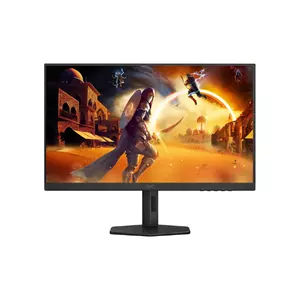
- AOC Q27G4XN
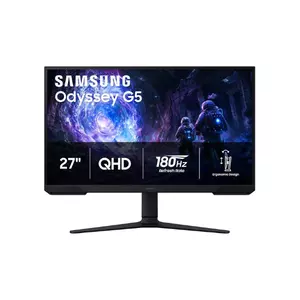
- Samsung Odyssey G5 G51F
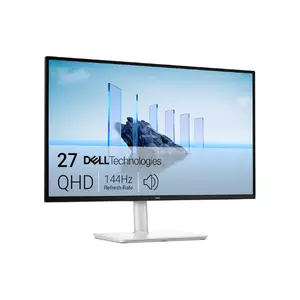
- Dell 27 Plus QHD S2725DSM
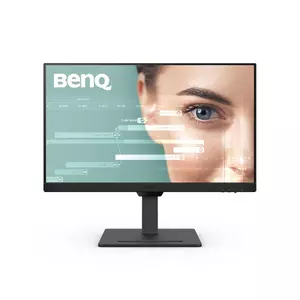
- BenQ GW2790T
- Budget Monitor FAQ for Home Workers
How to Judge a Budget Office Monitor
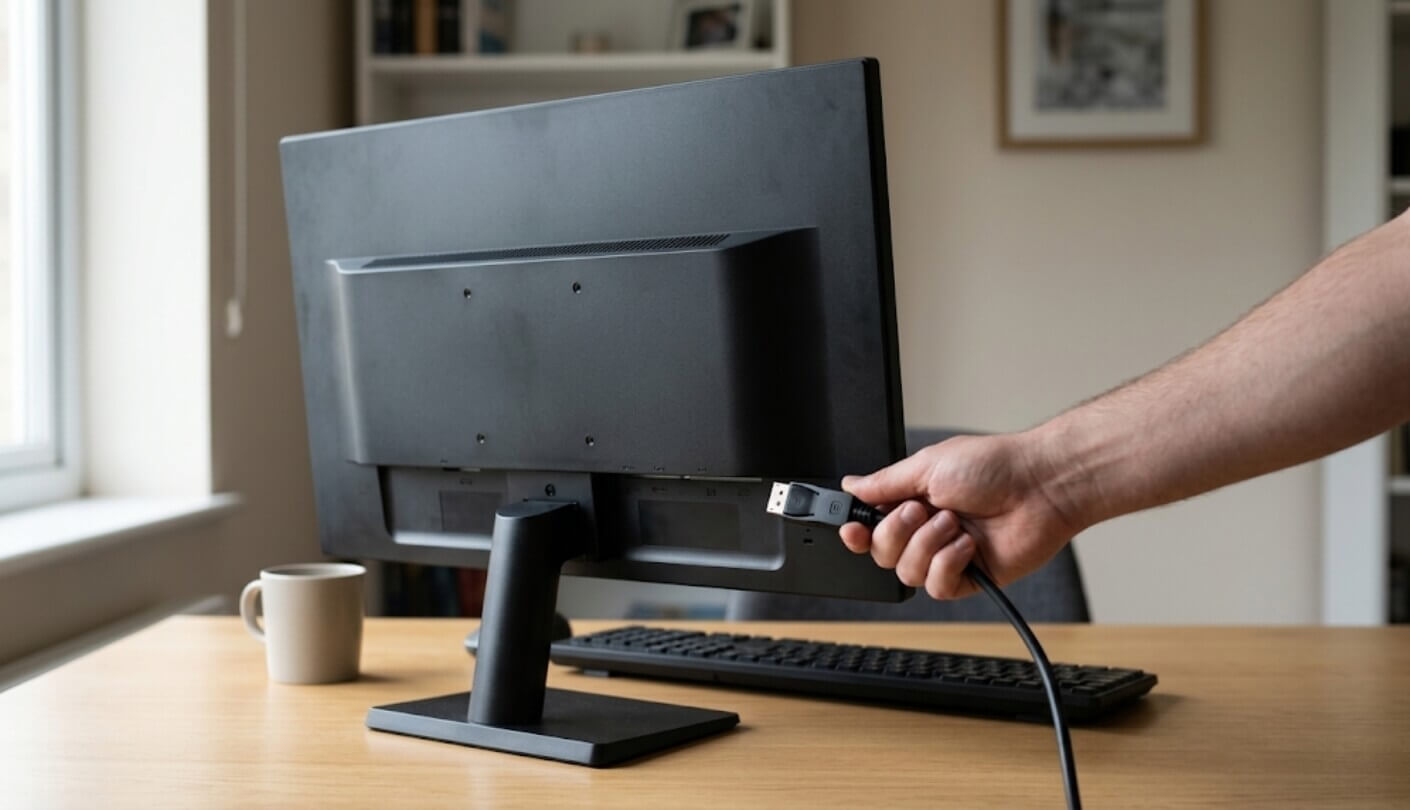
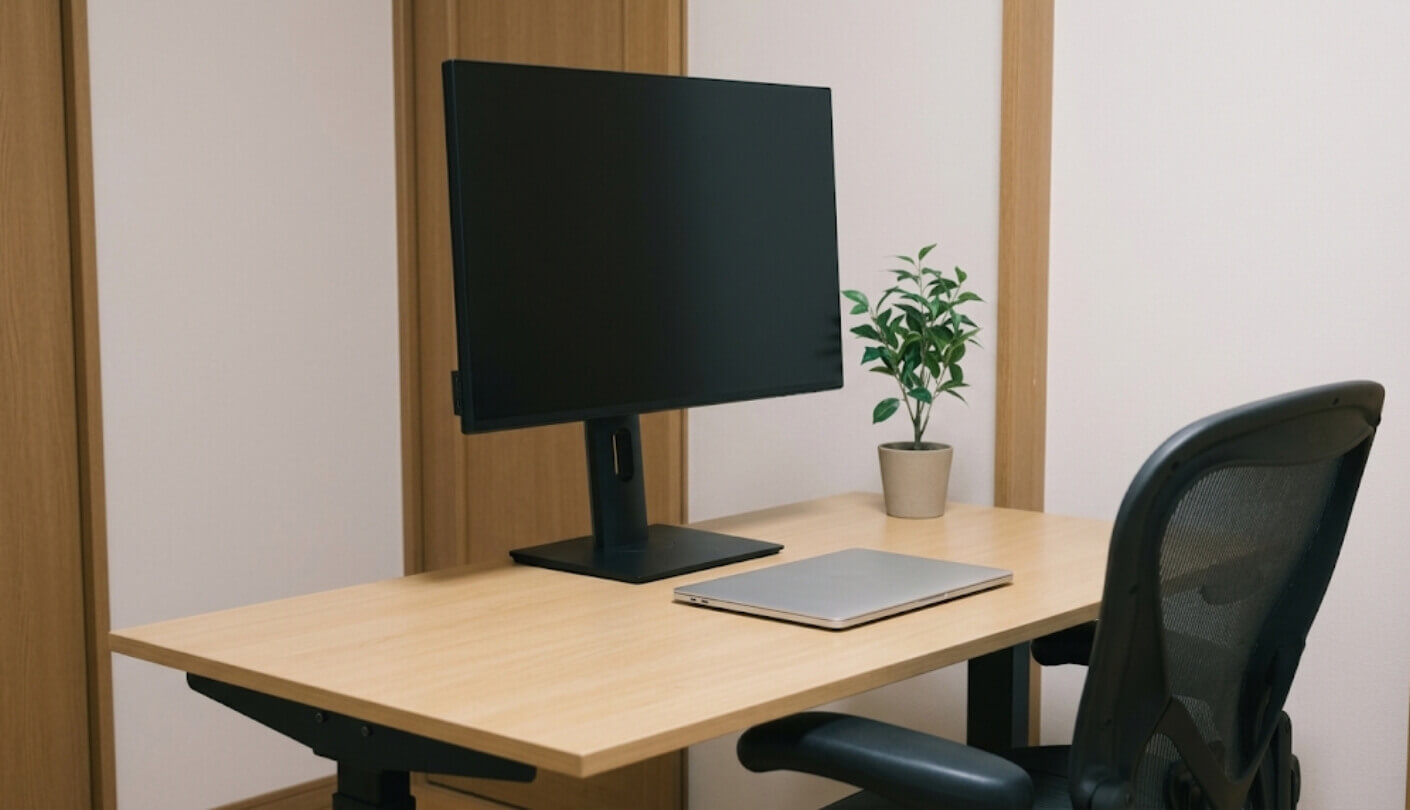
A 27-inch monitor on a home desk. Source: gagadget.com
All five screens measure 27 inches across the diagonal. Four of them carry a 2560 by 1440 panel and one carries 1920 by 1080, and that single line is the biggest practical difference on this page by a distance. After resolution, four questions do the rest of the sorting: how much workspace the pixel count buys you, what the panel does with dark tones, how far the stand travels, and whether the eye-comfort badges on the box describe hardware or a menu item.
Pixel Density Is the Number Nobody Prints
Divide the horizontal pixel count by the physical width and you get pixels per inch, the number that settles how much fits on screen and how large it looks once it is there. A 27-inch panel at 2560 by 1440 lands at roughly 109 of them. The same 27 inches at 1920 by 1080 lands at 82. The difference is not sharpness in the abstract, it is how many usable rows of a spreadsheet you can read without leaning in, and how comfortably two browser windows sit side by side without either one going narrow enough to break its layout.
At 82 pixels per inch a 27-inch screen hands you the exact desktop of a 24-inch 1080p monitor, only spread across more glass. That delights anyone who wanted bigger type without touching a scaling slider and frustrates anyone who wanted extra room.
I switched a spare desk from a 27-inch 1080p panel to a 1440p one of identical size and the gain showed up within an hour, mostly in code editors and long documents. Text became smaller rather than blurrier, which is the trade you are making. Anyone with tired eyes who wants big type and no squinting should treat the lower density as a feature rather than a flaw, and everyone else should treat it as the reason the cheaper screen is cheaper.
Contrast Separates These Panels More Than Colour Does
Every screen on this page claims wide viewing angles and roughly the same colour reproduction, and in daily use those claims hold up well enough that the differences barely register. Where the panels genuinely part ways is in how deep black goes. The contrast ratio figures across these five run from 1300 to 1 up to 5000 to 1, a spread wide enough that the same dark film scene looks charcoal grey on one and properly black on another.
IPS panels sit at the bottom of that range and VA panels sit at the top, which is the tidy version of the story. The untidy version is that VA panels shift colour more when you look at them off-axis and can smear slightly in fast motion, and IPS panels keep their composure from any seat. I work in a room with the blinds half shut most of the day, so higher contrast matters to me more than it would to somebody facing a bright window, and that is the question to ask yourself before letting a contrast number make the decision.
A Stand That Only Tilts Will Cost You Later
Monitor stands are the cheapest place for a manufacturer to save money and the place where the saving hurts most. A screen whose stand only tilts sits at whatever height the base gives it, and on most desks that height is too low, which pulls your chin down and your shoulders forward for eight hours a day. The fix is a stack of books or an aftermarket arm, and both of those cost time, money or dignity.
Height adjustment is the single feature I would refuse to give up on a screen I sit in front of daily. Everything else on the spec sheet is a preference, and that one is posture.
Travel ranges here run from nothing at all to 130mm, with pivot into portrait orientation on four of the five. Portrait mode sounds like a gimmick until you spend a week reading long documents or reviewing code in it, at which point it becomes hard to give up. Check the VESA pattern too, because every screen here uses the standard 100 by 100mm holes, which means any cheap arm will fit if you decide the included stand is not enough.
Count the Inputs, Then Check the Cable in the Box
Input counts vary more than you would expect at this money. Four of these five give you two HDMI ports plus a DisplayPort, which covers a work laptop, a personal machine and a console with room to spare. One gives you a single HDMI and a single DisplayPort, so a third device means unplugging something or buying a switch. Input hotkeys matter as much as the count, and the screens that let you cycle sources from a single button save a genuine amount of daily irritation.
Cable versions are the part everybody skips. Both the Dell and the BenQ ship an HDMI 1.4 lead in the carton, which is fine for 1080p at 100Hz and hopeless for 1440p at 144Hz. I keep a labelled DisplayPort cable in a drawer specifically for this, because the failure mode is not a black screen, it is a monitor that quietly runs at 60Hz while you assume you are getting what you paid for. Open your display settings on day one and confirm the refresh rate rather than trusting the box.
Eye Comfort Claims Split Into Hardware and Software
Flicker-free backlights and low blue light filters appear on every listing here, and both are worth having. Flicker-free means the backlight runs on direct current instead of pulsing to dim itself, which is a hardware property you cannot switch off or misconfigure. Blue light reduction comes in two flavours, a hardware panel treatment certified by a testing body and a software filter that shifts the picture warm, and the listings rarely distinguish between them.
An ambient light sensor is the eye-care feature that actually changes your day, because it adjusts brightness as the room changes without you touching a button. The rest of that category amounts to a menu item you set once and never revisit.
Only one screen here carries such a sensor, and it also carries reading modes tuned for text and for code editors. The rest offer preset picture modes and a break reminder utility, which help if you use them and do nothing if you do not. I set brightness once against my room and never think about it again, so the sensor matters less to me than it would to somebody whose desk sits beside a window that swings from grey morning to hard afternoon sun.
Top 5 Budget Monitors for a Home Office
Screen size is identical across all five, which removes the easiest sorting tool immediately. What remains is pixel density, panel contrast, how far the stand moves, how many sources you can leave plugged in, and whether the manufacturer thought about your eyes or your frame rate. Those five questions rank these monitors very differently from the way the retail listings do, and the screen with the loudest gaming numbers is not automatically the one you want carrying your working day.
- 100% sRGB Coverage
- 10-Bit Colour Depth
- Two HDMI 2.0b
- Eye-Q Check Tool
- Pen Slot Base
- 5000 To 1
- 180Hz Over DisplayPort
- 130mm Height Range
- Three-Year Warranty
- Zero-Bright-Dot Cover
- 3000 To 1
- Downstream USB Port
- 92-Degree Pivot
- Auto Source Switch
- Three Video Inputs
- 350 Nits Brightness
- 144Hz Refresh
- Dual 3W Speakers
- Ash White Finish
- Four-Star Eye Rating
- Ambient Light Sensor
- ePaper Reading Mode
- Coding Colour Mode
- 110mm Height Travel
- EPEAT Bronze Rated
Home Office Monitor Comparison
Every figure below comes from the manufacturers' own published specifications, ordered by what a desk worker notices first:
| Specification | MSI PRO MP275Q | AOC Q27G4XN | Samsung Odyssey G5 G51F | Dell 27 Plus S2725DSM | BenQ GW2790T |
| Panel And Resolution | 27-inch IPS, 2560 x 1440 | 27-inch Fast VA, 2560 x 1440 | 27-inch VA, 2560 x 1440 | 27-inch IPS, 2560 x 1440 | 27-inch IPS, 1920 x 1080 |
| Pixel Density | 109 PPI | 109 PPI | 109 PPI | 109 PPI | 82 PPI |
| Maximum Refresh Rate | 100Hz | 180Hz | 180Hz | 144Hz | 100Hz |
| Rated Static Contrast | 1300 to 1 | 5000 to 1 | 3000 to 1 | 1500 to 1 | 1300 to 1 |
| Typical Brightness | 300 nits | 300 nits | 300 nits | 350 nits | 250 nits |
| Video Inputs | Two HDMI 2.0b, one DisplayPort 1.2a | Two HDMI 2.0, one DisplayPort 1.4 | Two HDMI 2.0, one DisplayPort 1.4 | One HDMI, one DisplayPort 1.4 | Two HDMI 1.4, one DisplayPort 1.2 |
| Stand Movement | Tilt only | Height, tilt, swivel, pivot | Height, tilt, pivot | Height, tilt, swivel, pivot | Height, tilt, swivel, pivot |
| Built-In Speakers | Two 2W drivers | None | None | Two 3W drivers | Two 2W drivers |
| Variable Refresh Support | Adaptive-Sync | FreeSync Premium, 48 to 180Hz | AMD FreeSync | AMD FreeSync | VESA MediaSync only |
| Standout Extra | 10-bit colour through frame rate control | Three-year zero-bright-dot cover | Downstream USB-A socket | Ash white chassis | Ambient light sensor |
The pixel density row does most of the work here. Four screens land on the same figure and the BenQ sits well below them, which means it is the only monitor on this page that gives you less desktop than the others rather than a different flavour of the same thing. Contrast splits the group along panel technology, with the two VA screens roughly two to four times ahead of the three IPS ones on paper, though that advantage comes with the off-axis colour shift VA panels are known for. Stand movement is where the money shows: four screens raise, lower and rotate, and the MSI nods forward and back and stops there.
MSI PRO MP275Q Review
Editor's Choice
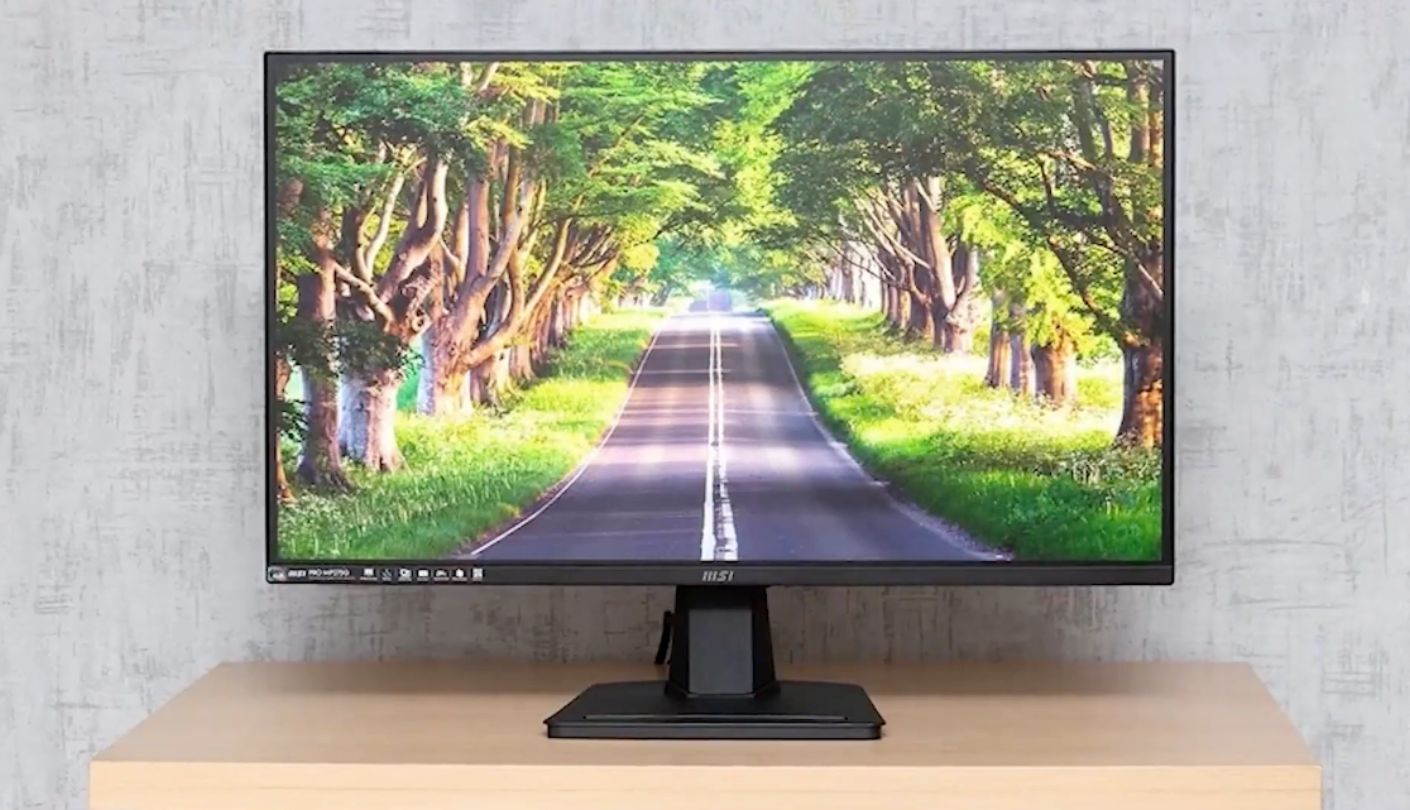
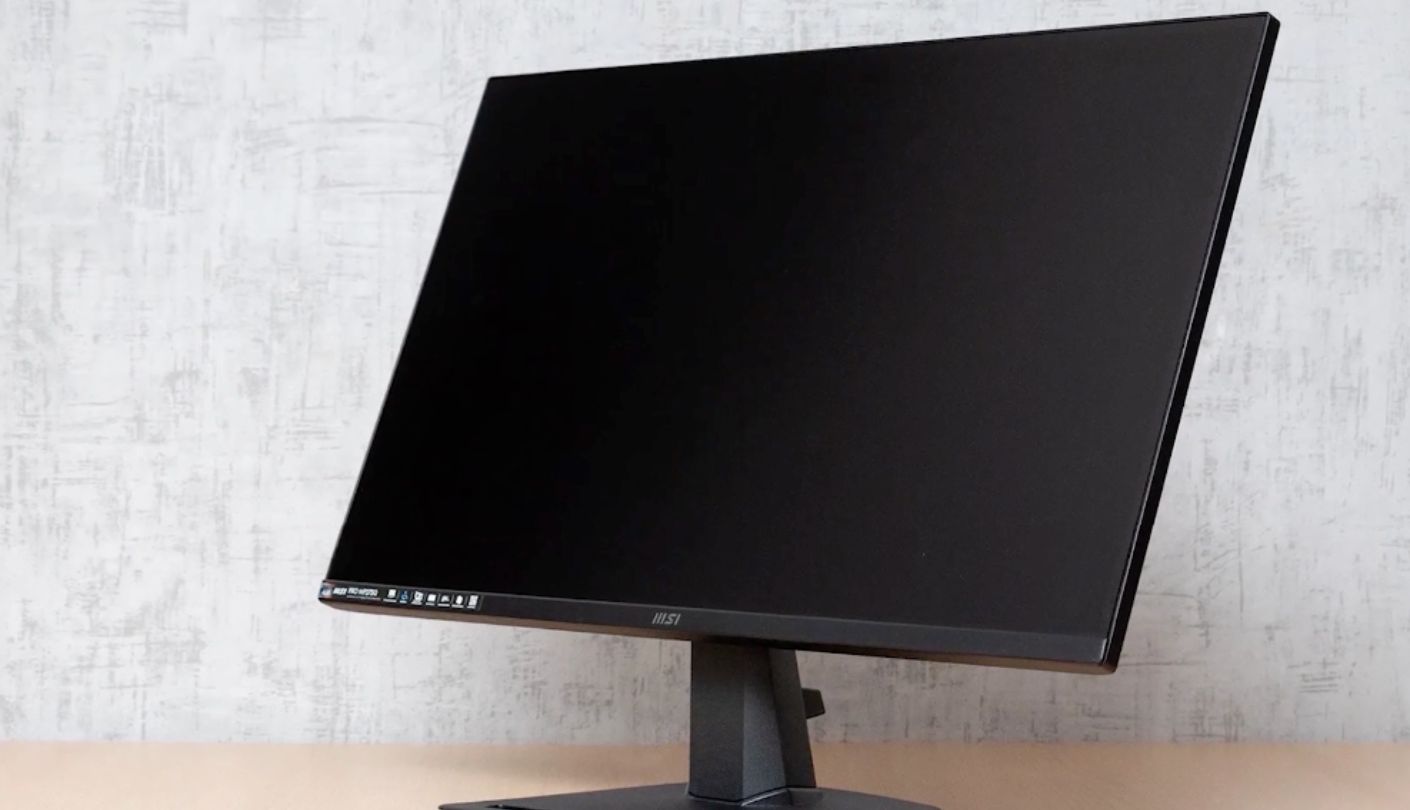
Full sRGB coverage, ten-bit colour through frame rate control, and a moulded groove in the base sized for a pen. That is an unusual set of priorities for a screen this cheap, and it tells you who MSI had in mind. The MSI PRO MP275Q is built as an office display first and a gaming one never, which is exactly why it tops this page.
The panel is a 27-inch IPS at 2560 by 1440 running at 100Hz, rated for 300 nits and 1300 to 1 contrast, with an anti-glare finish and 178-degree viewing angles in both directions. MSI quotes full sRGB coverage measured against the CIE 1976 standard, which flatters the figure slightly compared with the CIE 1931 basis most rivals use, so treat it as good rather than extraordinary. Colour depth is the more interesting claim, at 1.07 billion shades through an eight-bit panel with frame rate control, and nothing else here matches that.
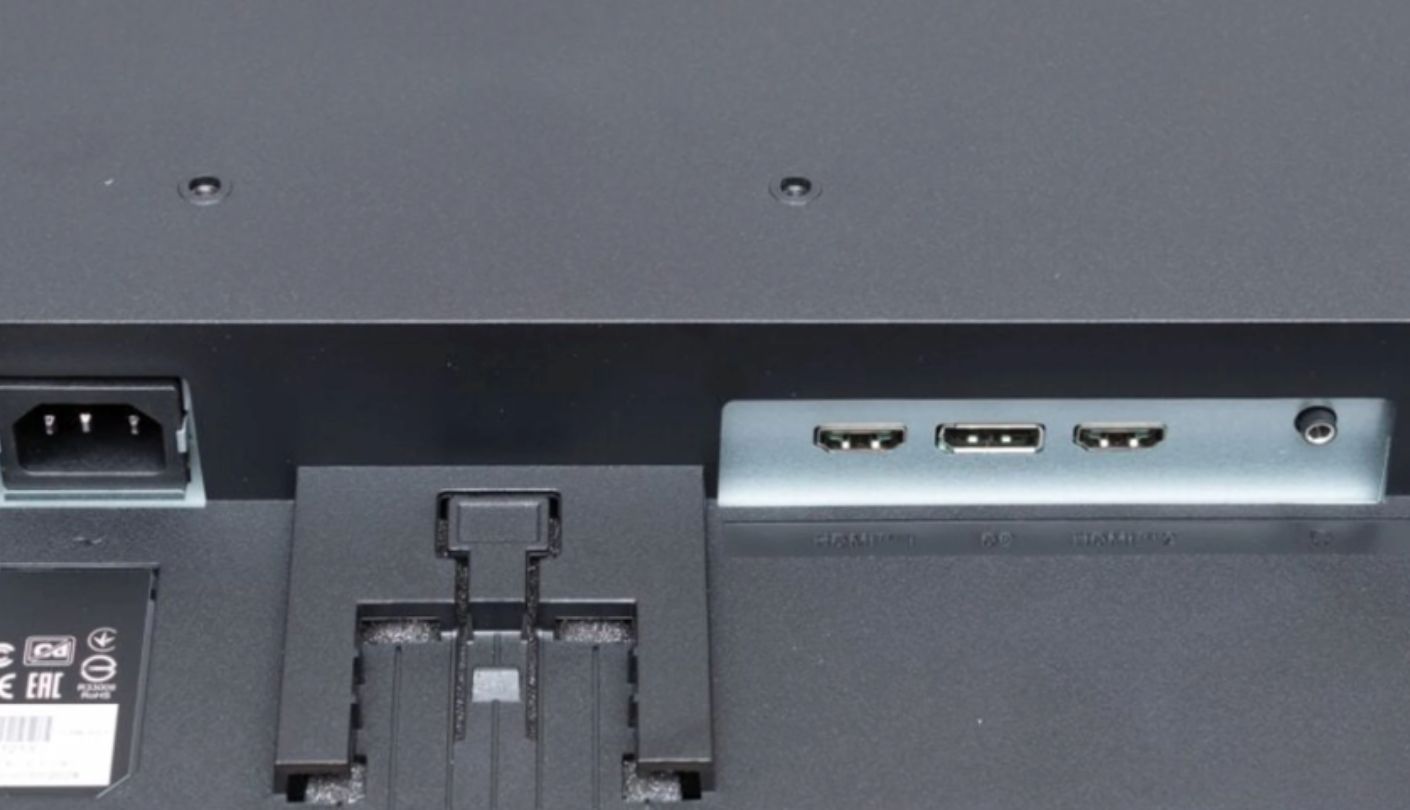
Connectivity runs to two HDMI 2.0b inputs, one DisplayPort 1.2a and a headphone output, with two 2W speakers built in for conference calls. That input count means a work laptop, a personal desktop and a console can all stay connected at once. Adaptive-Sync is supported, though MSI publishes no refresh range for it, so treat the feature as a bonus rather than a reason to buy. The HDR Ready badge is a software toggle rather than a certified standard, and it will not transform anything.
MSI leans hard on eye comfort and most of it is substantive. The panel carries TÜV Rheinland certification for its anti-flicker backlight and its blue light reduction, and there is a self-assessment tool in the on-screen menu called Eye-Q Check that walks you through a quick vision and posture prompt. The bundled Display Kit software adds window tiling and per-application display profiles, which is the sort of thing that usually costs extra elsewhere. None of it is essential and all of it is free.
My one genuine complaint is the stand. It tilts from five degrees forward to twenty degrees back and does nothing else, no height, no swivel, no pivot, which on a standard desk leaves the panel sitting lower than most necks would like. The screen weighs just over four kilograms and takes a 100 by 100mm VESA plate, so a cheap arm fixes the problem outright, and MSI even designed the mount to accept its own Cubi mini PC on the back. Budget for the arm and this becomes the most sensible screen here.
Pros:
- 100% sRGB Coverage
- 10-Bit Colour Depth
- Two HDMI 2.0b
- Eye-Q Check Tool
- Pen Slot Base
Cons:
- Stand Only Tilts
- Vague HDR Claim
Summary: Anyone already owning a monitor arm should put this at the top of their list without much further thought. Photographers and designers will care most about the ten-bit colour path, which is the one specification here that a rival cannot answer with a firmware setting.
AOC Q27G4XN Review
Best Overall
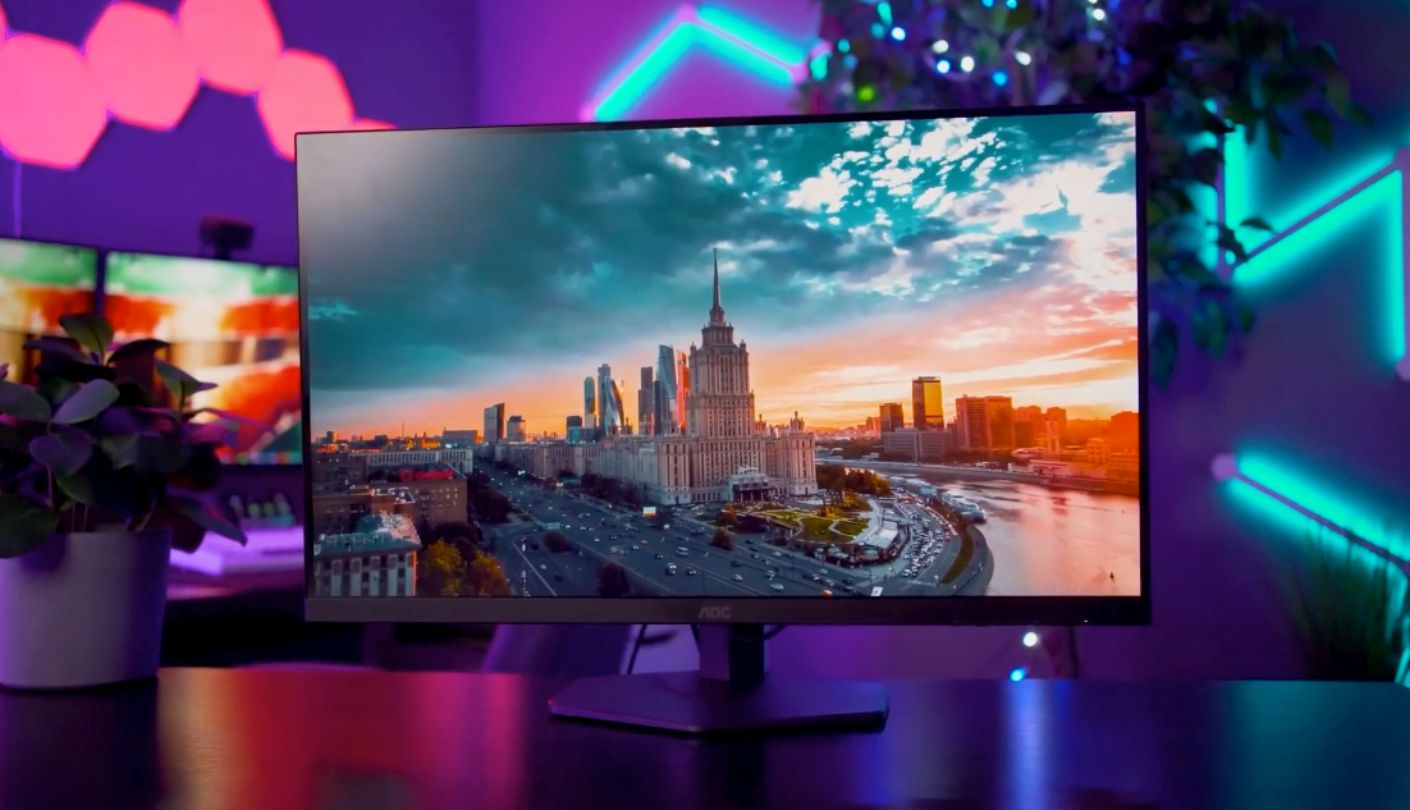
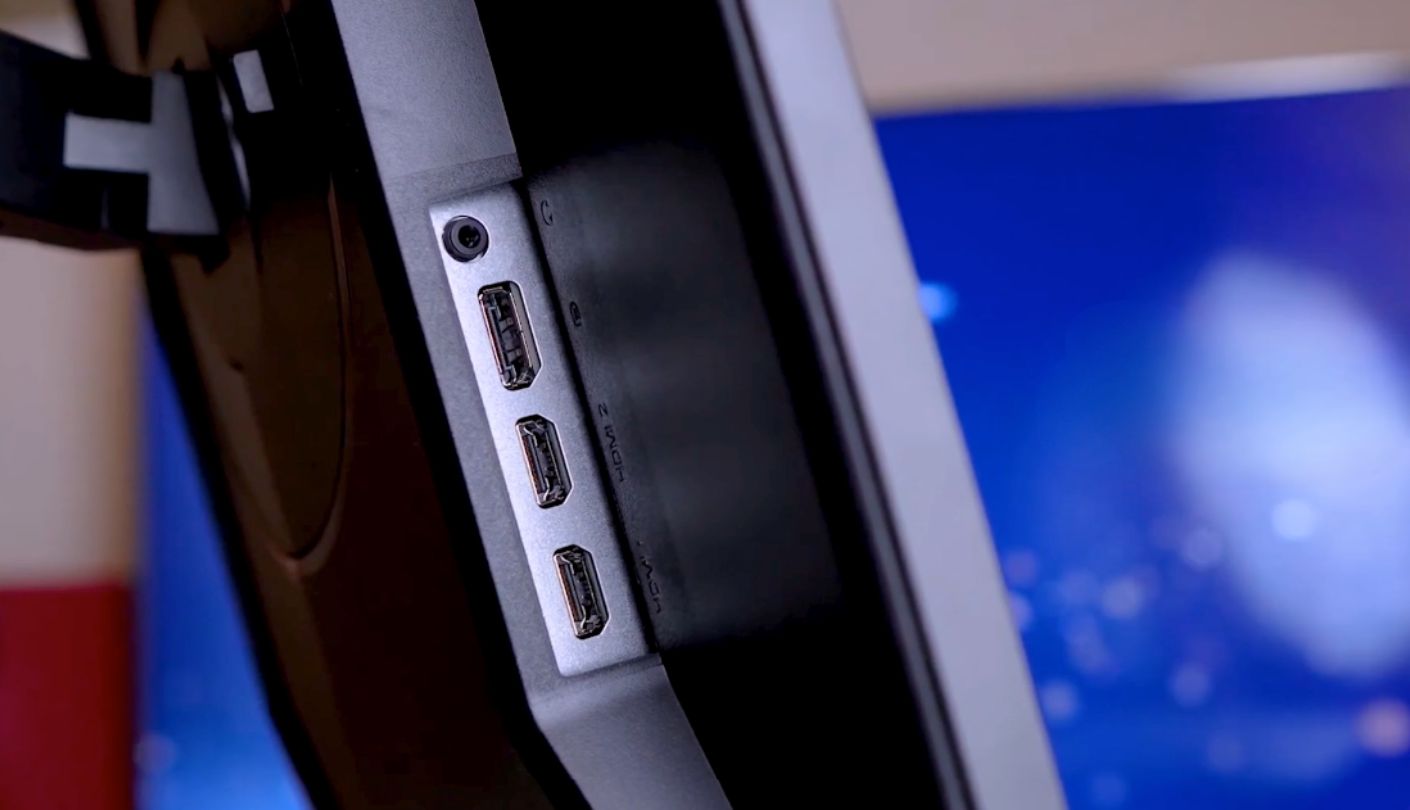
Five thousand to one against thirteen hundred to one. Put the AOC Q27G4XN next to any of the three IPS screens here with a dark film playing and the gap stops being a number on a page. Blacks go properly black rather than settling into that washed grey every cheap IPS panel produces, and for evening work or media that difference outweighs almost everything else here.
AOC calls the panel Fast VA, and the specifications back the name up. Refresh tops out at 180Hz over DisplayPort 1.4, response time is quoted at one millisecond grey to grey and half a millisecond MPRT, and FreeSync Premium is certified across a 48 to 180Hz window. Brightness sits at 300 nits with HDR10 support. Colour is quoted at 127.8 percent of sRGB and 93.1 percent of DCI-P3 against the CIE 1976 standard, figures that look enormous next to rivals quoting the stricter CIE 1931 basis, so do not read them as a straight win.
One limitation belongs in the open before anything else. The two HDMI 2.0 ports run to 144Hz, and the full 180Hz refresh is available only over DisplayPort. AOC ships both cables in the box, which is more than most manufacturers manage, so this costs you nothing as long as you use the right one. Console owners plugging into HDMI should know the ceiling exists before they start hunting for a setting that does not exist.
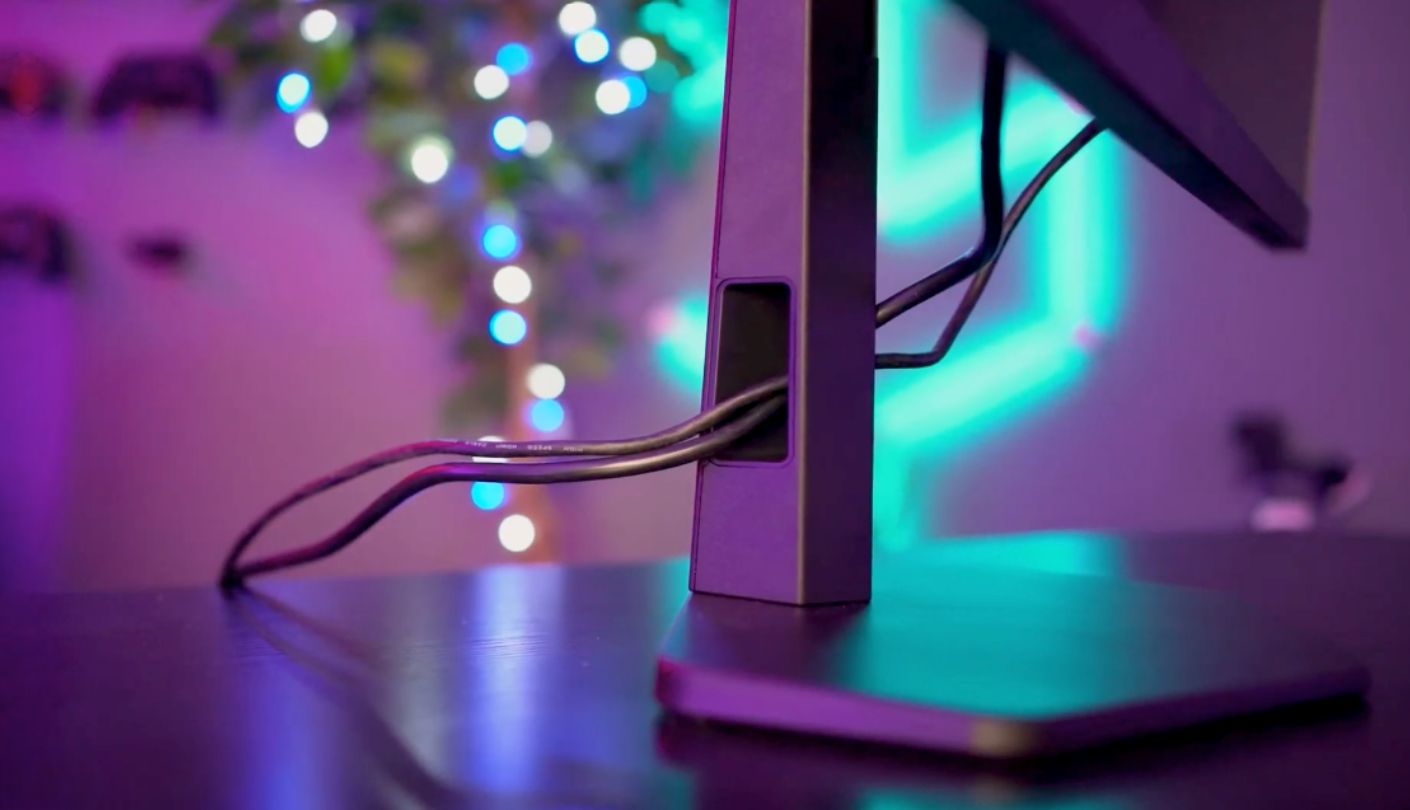
The stand is the reason this takes Best Overall rather than the contrast figure. It travels 130mm vertically, the widest range on this page, tilts from three degrees forward to twenty-one back, swivels 28 degrees to each side and pivots a full 90 degrees into portrait. AOC co-designed the base with esports players to shrink its desk footprint, and the practical result is that a keyboard slides underneath it. Cable routing runs through the column, and three sides of the bezel are close to frameless for anyone planning a dual-screen setup.
Warranty coverage closes the case. AOC backs this for three years including a zero-bright-dot guarantee, which means a single stuck pixel qualifies for replacement rather than being written off as within tolerance. Dell covers its own screen for twelve months by comparison, so this is two extra years of not worrying about it. Two things are absent and worth naming: there are no built-in speakers, only a headphone jack, and there is no USB hub of any kind on the chassis.
Pros:
- 5000 To 1
- 180Hz Over DisplayPort
- 130mm Height Range
- Three-Year Warranty
- Zero-Bright-Dot Cover
Cons:
- HDMI Caps At 144Hz
- No Built-In Speakers
Summary: The best fit for a desk that has to serve as both office and evening entertainment without buying two screens. Anyone who relies on monitor speakers for calls should plan on a headset or a soundbar from the start.
Samsung Odyssey G5 G51F Review
USB Onboard
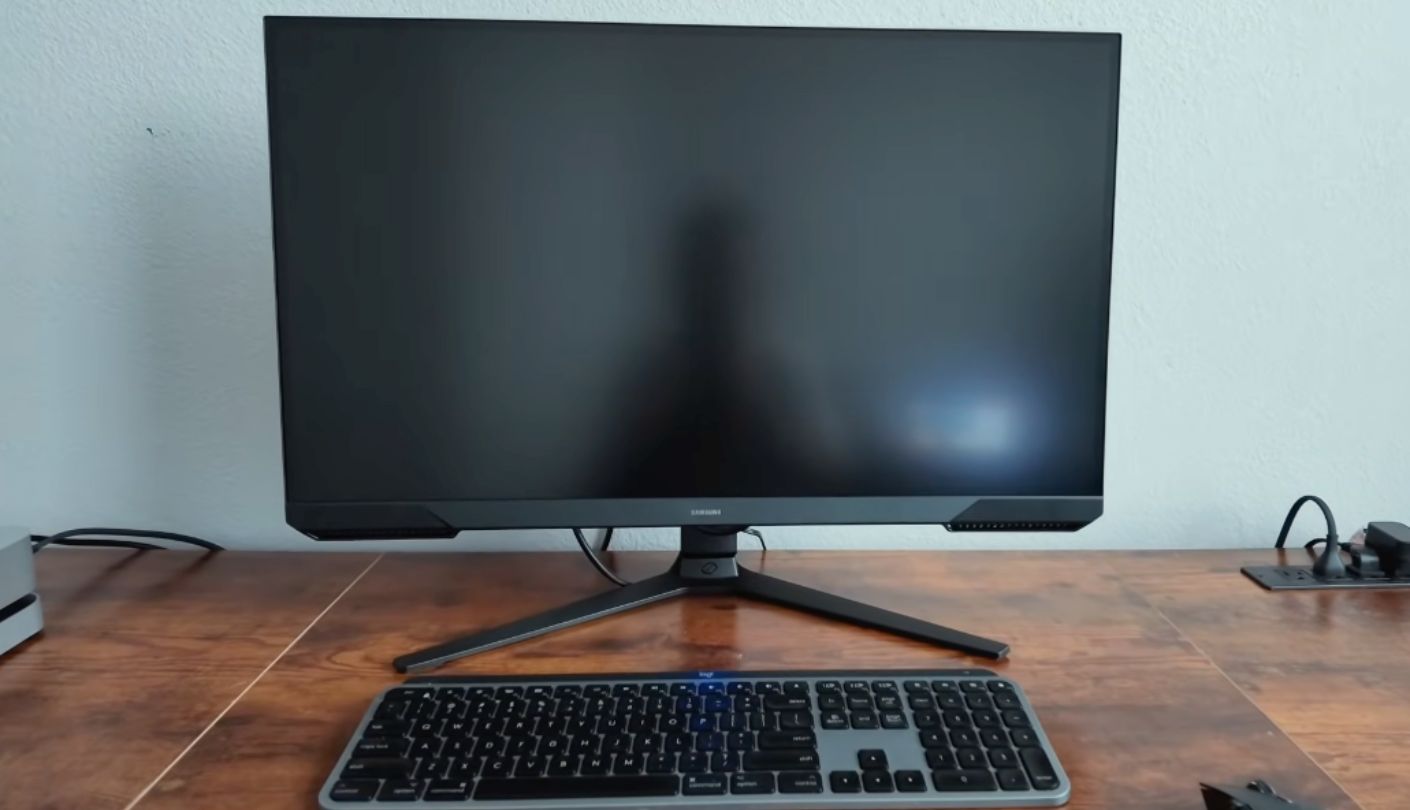
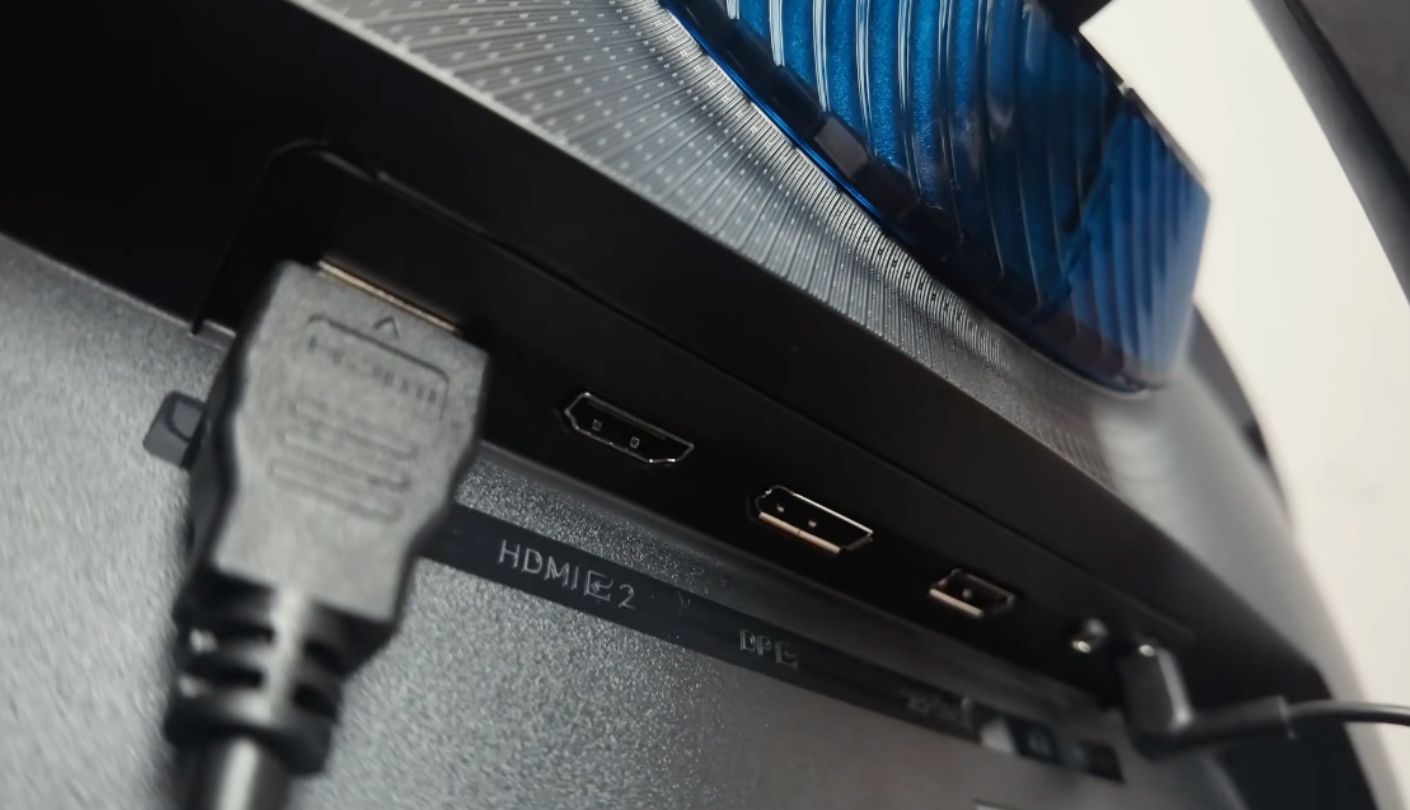
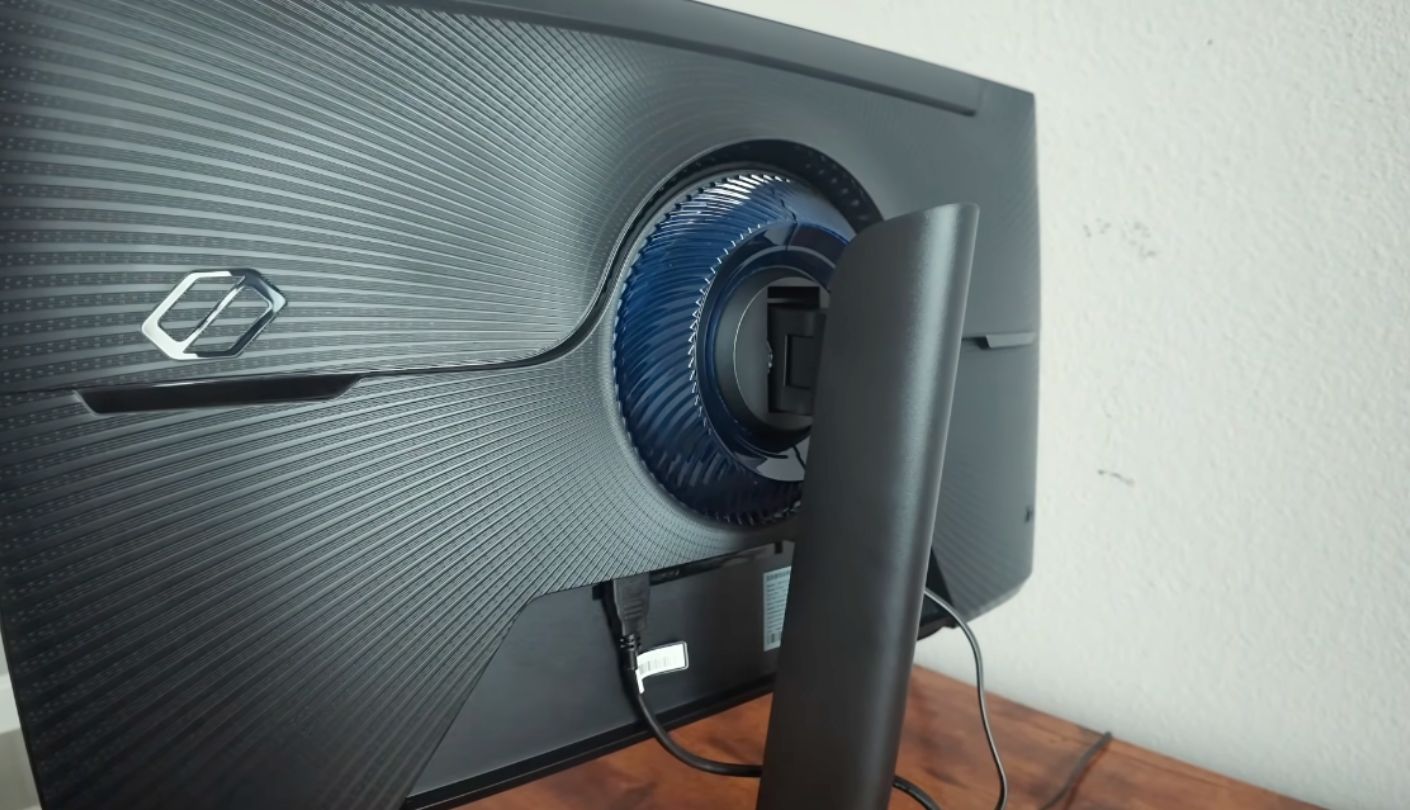
What does the Samsung badge actually buy you down here? The Samsung Odyssey G5 G51F answers that more convincingly than most of the company's budget screens, because it brings one thing nothing else on this page has: a downstream USB port on the back, so a keyboard receiver or a mouse dongle can live on the monitor rather than eating a laptop socket.
The panel is a 27-inch VA at 2560 by 1440, rated 300 nits typical and 3000 to 1 static contrast, with HDR10 support and 178-degree viewing angles. Refresh tops out at 180Hz with a one millisecond MPRT response, and AMD FreeSync handles tearing. Colour is quoted at 16.7 million shades with a 72 percent NTSC gamut figure, which is the older and less useful way of stating coverage, and it is the only number Samsung publishes on the subject.
Ports run to two HDMI 2.0 inputs, one DisplayPort 1.4, a headphone jack and that single downstream USB-A socket. Be clear about the last one: it runs at USB 2.0 speed, so it suits a wireless receiver, a keyboard or a mouse and is far too slow for an external drive. Auto Source Switch handles input changes on its own, waking to whichever connected machine you have just powered up, which is one of those features you stop noticing precisely because it works.
Ergonomics land in the middle of this group. The stand raises through 120mm, tilts from five degrees forward to twenty back and pivots 92 degrees into portrait, with a 100 by 100mm VESA pattern behind it. Power comes from an external adaptor rather than an internal supply, which keeps the chassis slim and puts a brick on your floor. The gaming extras are present and mostly harmless for office use, including Black Equalizer for lifting shadow detail and a Virtual Aim Point overlay you will never turn on.
Two absences shape who this suits. There are no speakers at all, so every sound goes to a headset or external kit, and Samsung makes no ten-bit colour claim, leaving the panel on the same eight-bit footing as three of its four rivals. Neither matters much if the screen is joining a desk that already has audio sorted, and the combination of deep VA contrast, a proper adjustable stand and somewhere to park a dongle makes this the most quietly practical option here.
Pros:
- 3000 To 1
- Downstream USB Port
- 92-Degree Pivot
- Auto Source Switch
- Three Video Inputs
Cons:
- USB Runs At 2.0
- Speakers Left Out
Summary: Hybrid workers who carry a laptop between home and office get the most from the auto switching and the spare USB socket. Sitting somebody to one side of you is where the missing swivel adjustment will start to grate.
Dell 27 Plus QHD S2725DSM Review
Brightest Panel
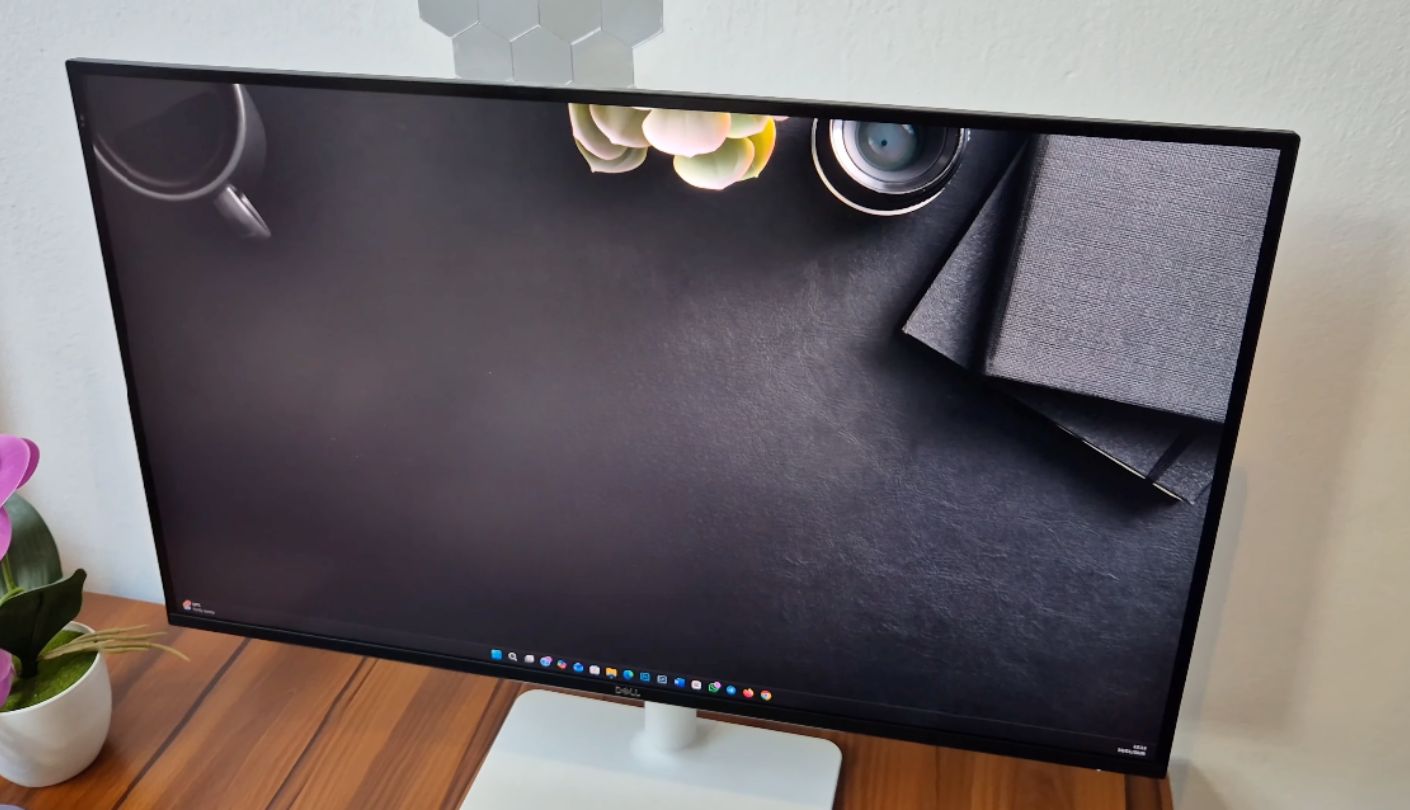
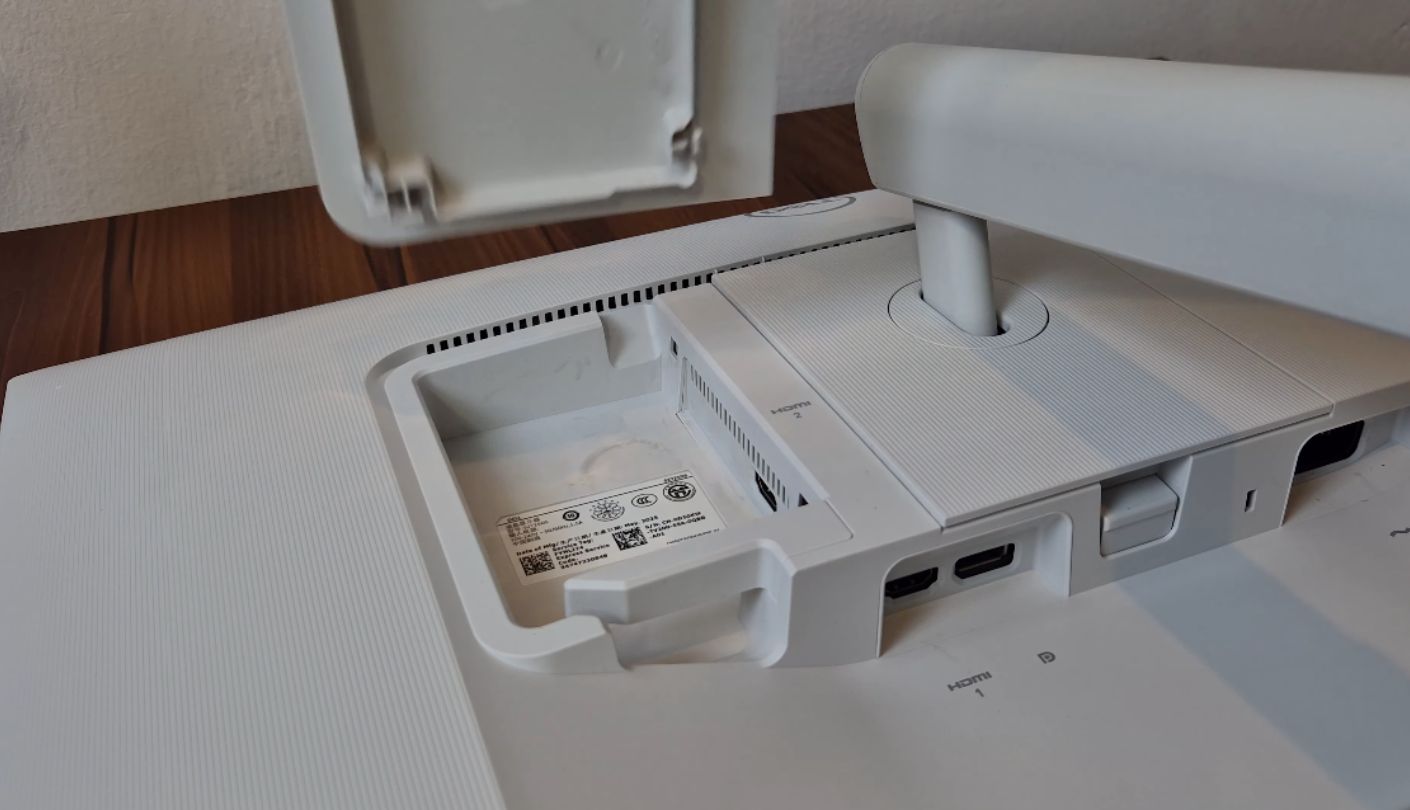
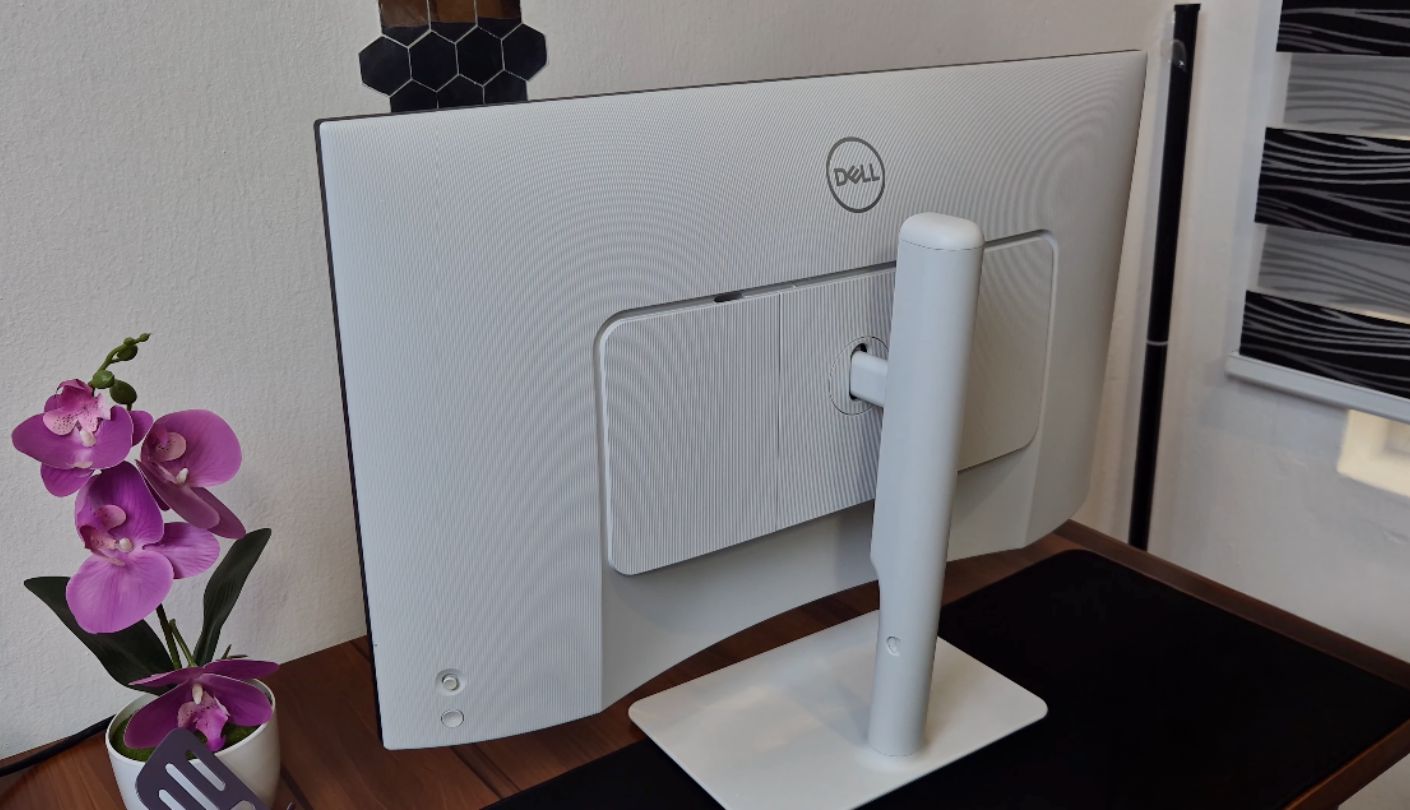
A friend of mine spent two years apologising for the matte black slab on his desk every time a video call started, and eventually solved it by buying a screen the colour of a fridge. The Dell 27 Plus QHD S2725DSM comes in a shade Dell calls ash white, and in a bedroom or a shared living space it disappears in a way black plastic simply cannot.
Underneath the finish is a capable panel. The IPS screen runs 2560 by 1440 at 144Hz, rated at 350 nits, which is the highest figure on this page and enough to hold its own in a bright room. Contrast is quoted at 1500 to 1, ahead of the other two IPS screens here, and colour coverage is 99 percent of sRGB measured against the stricter CIE 1931 standard. Response times are published honestly across four modes, from one millisecond MPRT down to eight milliseconds grey to grey at the default setting.
Audio is a genuine strong point. The two 3W drivers are the most powerful on this page, and while nobody should mistake them for a speaker system, they clear the bar for calls and background music without a separate box on the desk. The surface carries a 3H hard coating with an anti-glare treatment, the backlight is flicker-free, and Dell holds a four-star TÜV Rheinland Eye Comfort rating for the panel, which is the highest eye-care credential in this lineup.
Ergonomics are handled properly. The stand raises through 110mm, tilts from five degrees forward to twenty-one back, swivels 30 degrees each way and pivots a full 90 degrees in both directions, all on a 100 by 100mm VESA pattern. Dell's Display and Peripheral Manager software adds preset management and window arrangement from Windows, and the whole thing carries an Energy Star 8.0 rating with an operating draw of just over twenty-one watts.
Where this loses ground is the back panel. There is exactly one HDMI input and one DisplayPort, the fewest video sources here, and no USB hub anywhere on the chassis. Add a console to a desktop and you are unplugging cables or buying a switch. Dell also covers the monitor for one year against the three AOC offers, though that year includes advanced exchange and its premium panel exchange policy, which is better cover than the length suggests.
Pros:
- 350 Nits Brightness
- 144Hz Refresh
- Dual 3W Speakers
- Ash White Finish
- Four-Star Eye Rating
Cons:
- Single HDMI Input
- One-Year Cover
Summary: The pick for anyone whose desk lives in a bright room or a space that doubles as somewhere people relax. Households running a console alongside a computer should count their cables before ordering.
BenQ GW2790T Review
Eye Care
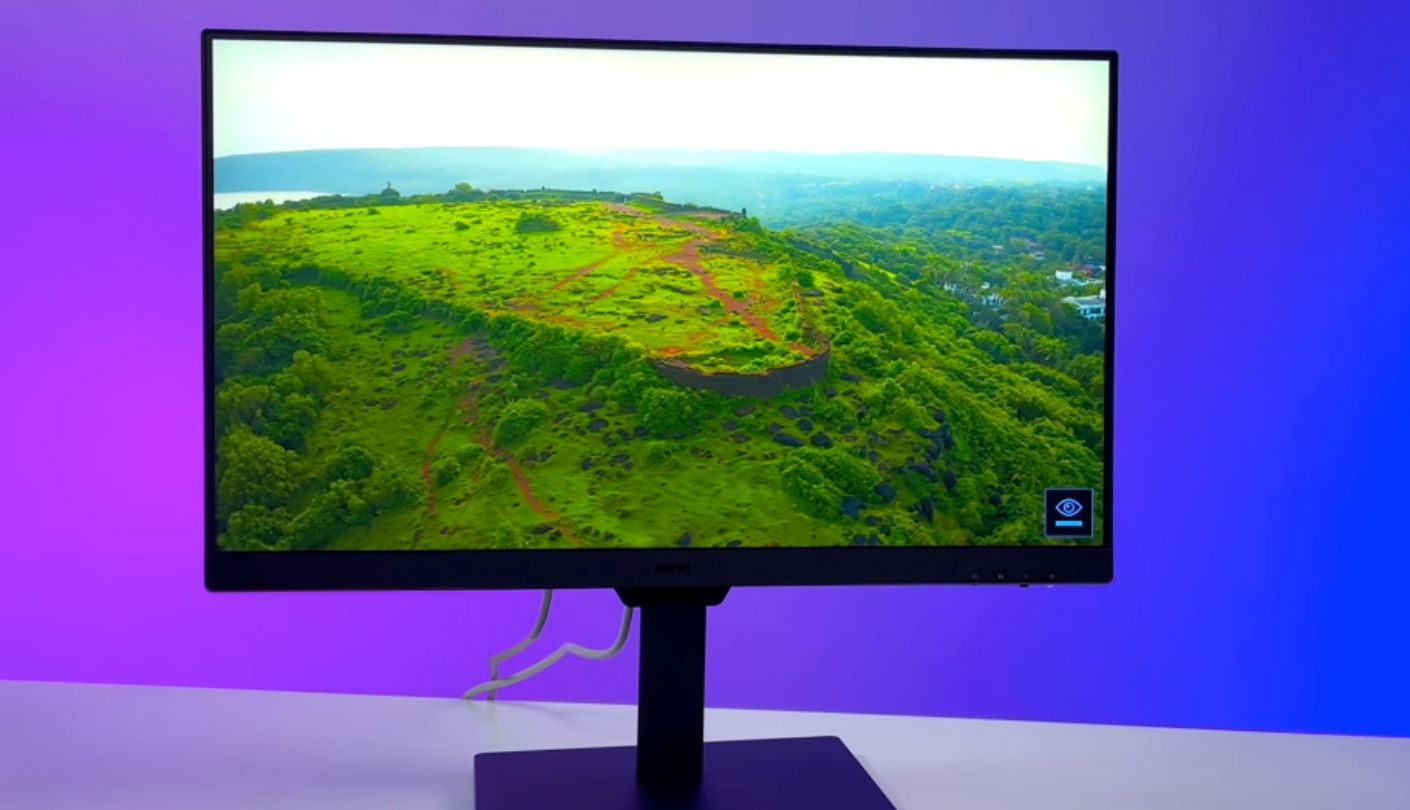
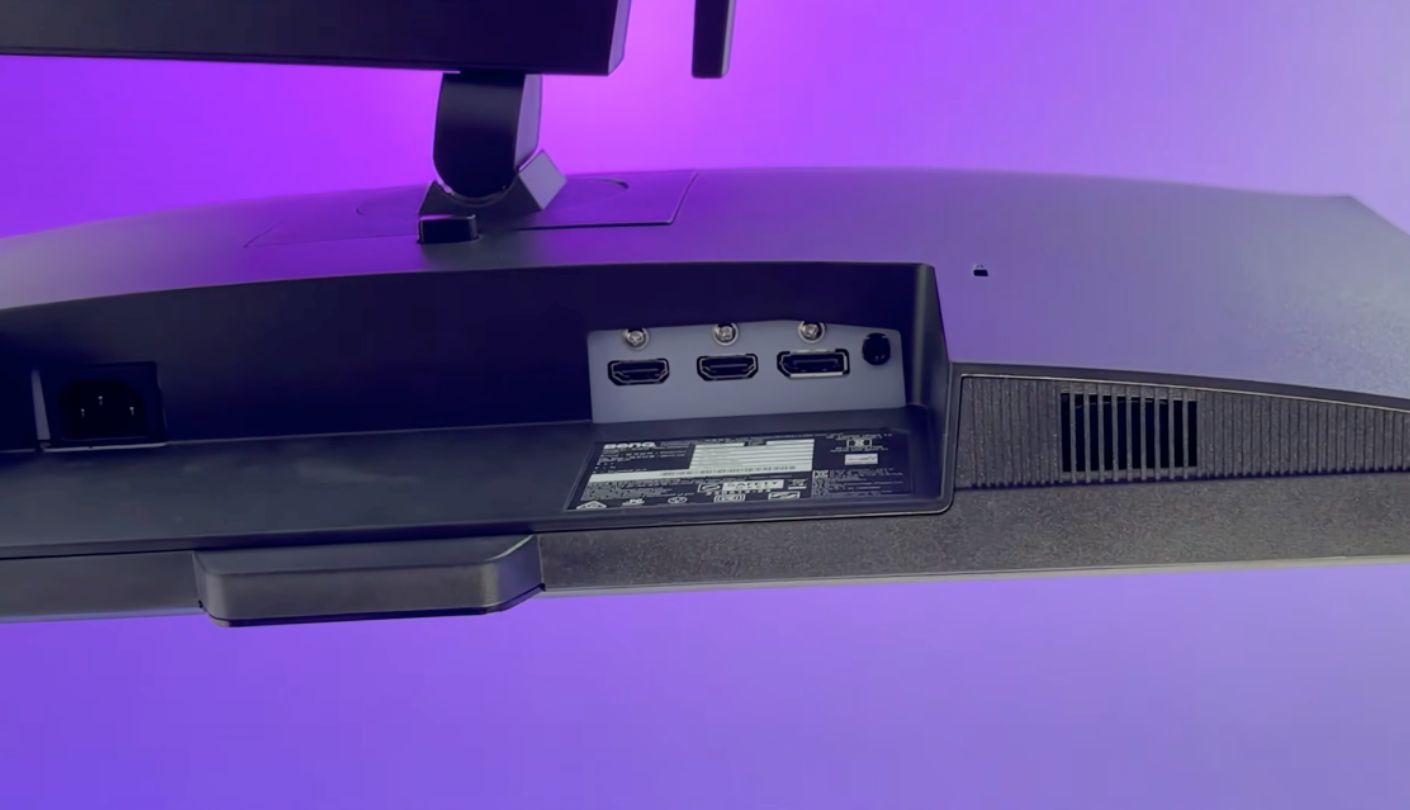
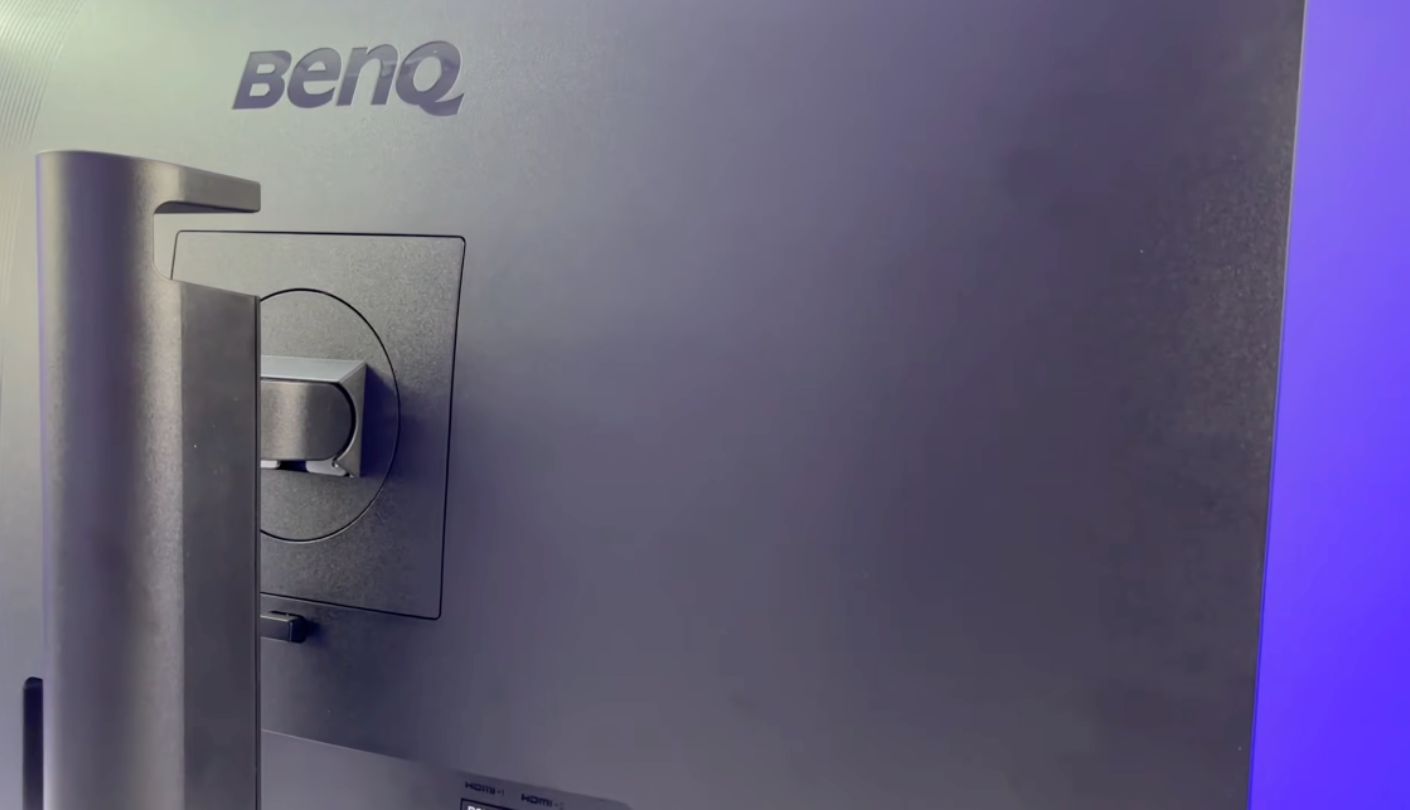
I almost cut this one from the shortlist. Putting a 1080p panel next to four 1440p screens of the same physical size looks like a category error on paper, and the pixel density row in the table above does the BenQ GW2790T no favours whatsoever. Then I counted how many people I know who buy a high-resolution screen and immediately scale the interface back up to make text readable, and this stopped looking like the odd one out.
The panel is a 27-inch IPS running 1920 x 1080 at 100Hz, rated at 250 nits and 1300 to 1 contrast, with 99 percent sRGB coverage and a matte finish. At 82 pixels per inch it has the lowest density here by a wide margin, which is the trade at the centre of this whole product. Text sits large and legible without any scaling adjustment, and you get noticeably less room than the four 1440p screens on this page. Response time is five milliseconds grey to grey and there is no adaptive sync, only VESA MediaSync certification for jitter-free video playback.
BenQ spends its budget on eye comfort instead of resolution, and the spend is visible. Brightness Intelligence Gen2 uses an ambient light sensor to adjust the backlight as the room changes, and it is the only sensor of its kind in this group. Alongside it sit an ePaper mode that mimics an e-reader for long documents, a Coding mode that boosts contrast and saturation for dark themes, a colour weakness setting for red-green deficiency, and a break reminder. The panel holds TÜV Rheinland Eye Comfort 2.0 and Eyesafe 2.0 certification for its flicker-free backlight and hardware blue light filtering.
Ergonomics are properly sorted. The stand raises through 110mm, tilts five degrees forward and twenty back, swivels twenty degrees each way and pivots a full ninety into portrait, which at 1080p gives you a tall column of text that suits reading and code review well. Two 2W speakers and a headphone jack handle audio, connectivity runs to two HDMI 1.4 ports and a DisplayPort 1.2, and there is an input hotkey for cycling sources with one press. The included cable is HDMI, which at this resolution and refresh rate is entirely adequate.
Environmental credentials round it out, with Energy Star 8.0, TCO Certified 9.0 and an EPEAT Bronze rating, plus a normal draw of twenty-five watts. Nobody buys a monitor for its certifications, though a procurement department might. The honest position is that this screen makes sense for tired eyes, for large-type readers and for anyone whose work is mostly words rather than windows, and makes very little sense for anyone who wanted a 27-inch panel to hold more on it.
Pros:
- Ambient Light Sensor
- ePaper Reading Mode
- Coding Colour Mode
- 110mm Height Travel
- EPEAT Bronze Rated
Cons:
- Lowest Pixel Density
- No Adaptive Sync
Summary: Slots in beautifully as the second screen on a two-monitor desk, holding chat windows, terminals and reference documents at a size you can read from across the room. Anyone considering it as their only display should sit at normal distance and picture a full spreadsheet on it first.
Budget Monitor FAQ for Home Workers
Is 1440p worth it over 1080p on a 27-inch screen?
For most desk work, yes. The jump takes pixel density from around 82 to around 109, which translates into more rows of a spreadsheet, more lines of code and two browser windows that both stay readable side by side. Text also stops looking slightly soft at normal seating distance. The exception is anyone who prefers large type or has tired eyes, because 1080p on a 27-inch panel gives you comfortably big text with no scaling required.
Does a higher refresh rate matter if I never game?
Less than a gaming listing implies, more than nothing. Moving from 60Hz to 100Hz or above makes scrolling, window dragging and cursor movement look smoother, and after a week you notice it when you go back. It will not sharpen text, improve colour or speed up your machine. Treat it as comfort rather than capability, and never pay a large premium for it on a work screen.
Should I choose an IPS or a VA panel?
It depends on your room and your seating position. VA panels here reach 3000 to 1 and 5000 to 1 contrast against 1300 to 1 and 1500 to 1 on the IPS screens, so dark content looks far better on them. IPS panels hold colour more consistently when viewed off-axis and handle fast motion with less smearing. A single user facing the screen directly in a dim room is better served by VA, and a shared or bright setup by IPS.
Do I need a monitor with built-in speakers?
Only if you have nowhere else for sound to go. Monitor speakers at this money are small drivers in a thin chassis, and they exist for video calls and background audio rather than music. Two of these five leave them out entirely and expect you to use a headset. If your desk already has headphones or a speaker you like, the speaker specification should not influence your choice at all.
Can I still use a monitor whose stand only tilts?
You can, though I would not plan on it long term. A fixed-height panel usually sits below eye level on a standard desk, which pulls your head down for hours at a time. Every screen here takes the standard 100 by 100mm VESA pattern, so a basic desk-clamp arm solves the problem completely for a modest extra outlay. Budget for one at the same time rather than telling yourself you will sort it later.
Which cable should I use to get the full refresh rate?
DisplayPort in almost every case. On the AOC the 180Hz maximum is available only over DisplayPort, with HDMI capped at 144Hz, and several of these monitors ship an HDMI 1.4 lead that cannot carry high refresh rates at 1440p. Check the refresh rate in your operating system's display settings on the first day rather than assuming, because a monitor running at 60Hz gives no warning that anything is wrong.
Are eye-care features actually useful or just marketing?
Both, depending on which one. Flicker-free backlights and hardware blue light filtering are real panel properties verified by testing bodies, and they help during long sessions. Preset picture modes and break reminders help only if you use them. An ambient light sensor that adjusts brightness automatically is the most practically useful of the group, and only one screen here has one.
Will any of these work with a work laptop over one cable?
None of them, because none has a USB-C input. Every screen here connects over HDMI or DisplayPort for video, which means a separate power cable for your laptop and separate cables for peripherals. Single-cable docking is the main thing this price bracket gives up compared with screens costing considerably more. A cheap USB-C hub sitting on the desk covers most of the gap if that workflow matters to you.
Choosing Between These Five
Start with two questions rather than a spec sheet. Do you already own a monitor arm, or would you happily buy one? That single answer decides whether the MSI's fixed stand is a dealbreaker or an irrelevance. Is your desk in a bright room or a dim one? That sorts the high-contrast VA screens from the steadier IPS ones faster than any other comparison you could run. Answer both honestly and two or three of these five fall away on their own.
What strikes me looking across the group is how little you give up now compared with a few years ago. A 27-inch 1440p panel with a fully adjustable stand and a three-year warranty used to be a serious purchase, and it has quietly become an ordinary one. The compromises that remain are specific and easy to spot: a missing hub here, a single HDMI port there, a resolution that suits reading more than multitasking. Pick the compromise that lands furthest from the way you actually work, and any of these will serve you well for years.

Meet James, our go-to tech guru and seasoned reviewer. His sharp attention to detail and love for gadgets drive his deep dives into the newest tech waves. James's insightful analysis and real zest for breakthroughs have earned him a solid reputation in the tech world.


